
After Dark
Deep blacks, neon magenta and violet highlights.
 Book
The color from our own shoots, packed as DaVinci Resolve PowerGrades. Drop one on your clip, set your exposure, and you're most of the way to a finished Fway grade.
Each look is named for the shoot it came from. Hover a card to wipe from flat to graded.
Deep blacks, neon magenta and violet highlights.
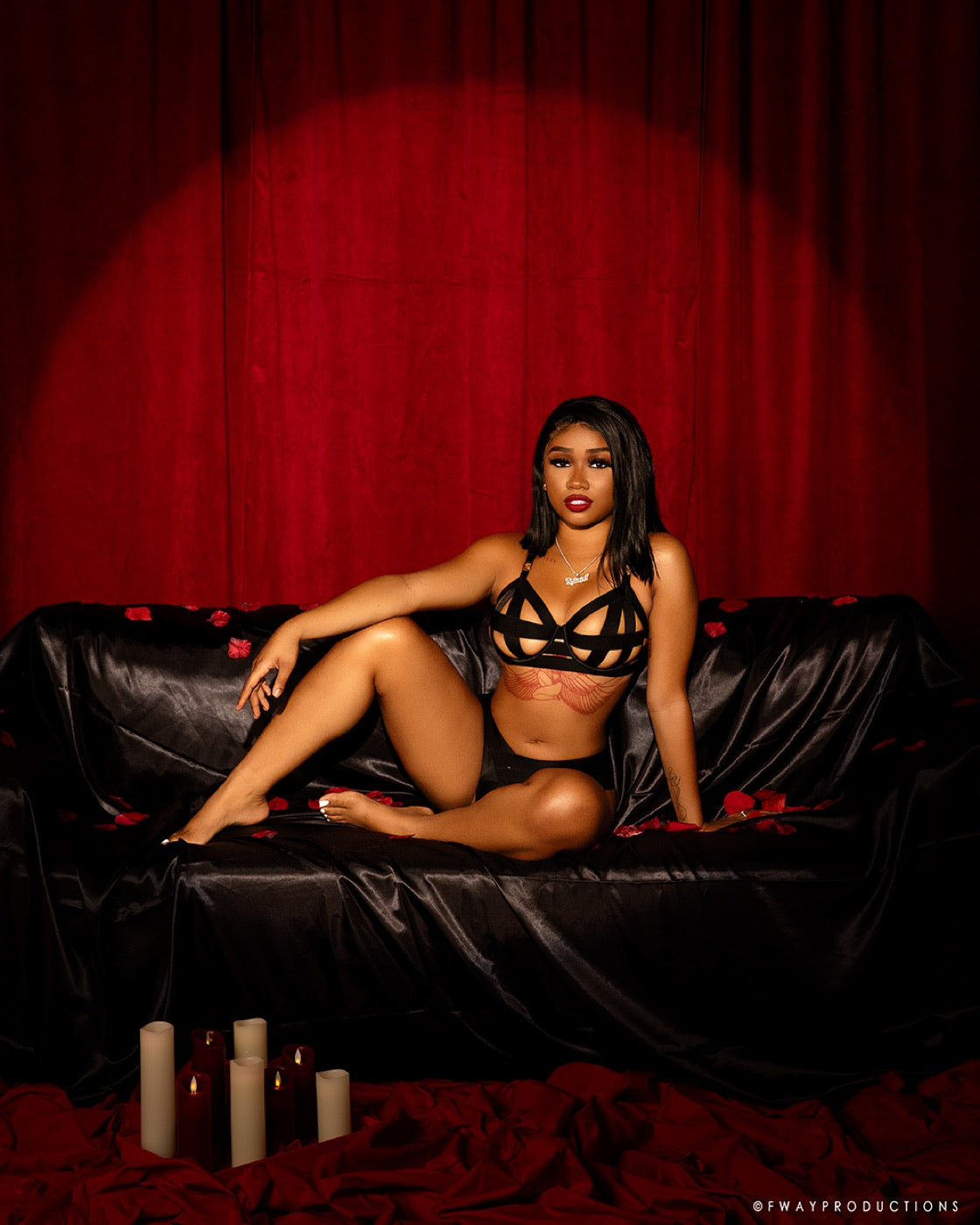
Rich reds and warm skin.
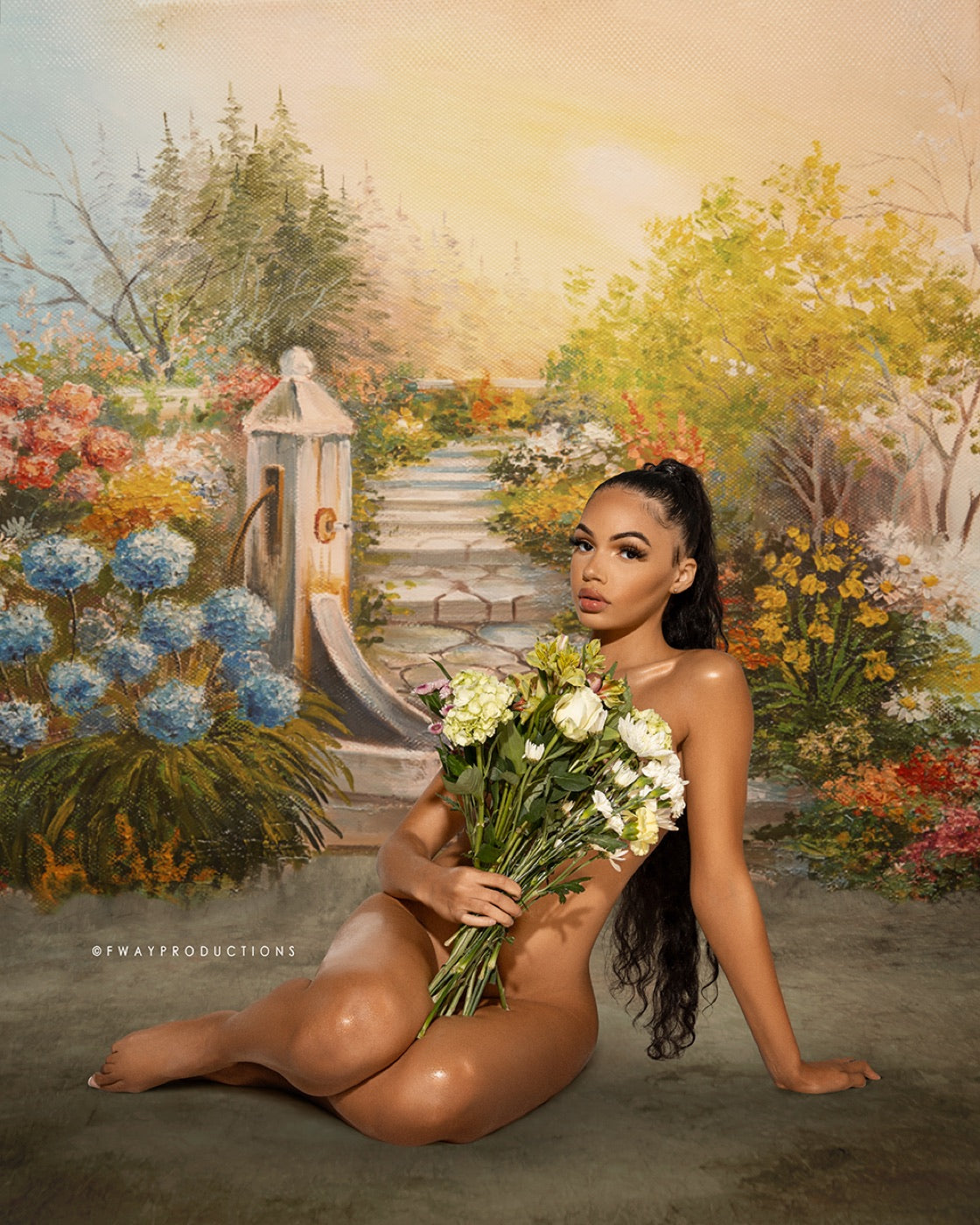
Soft pastels and painterly greens.
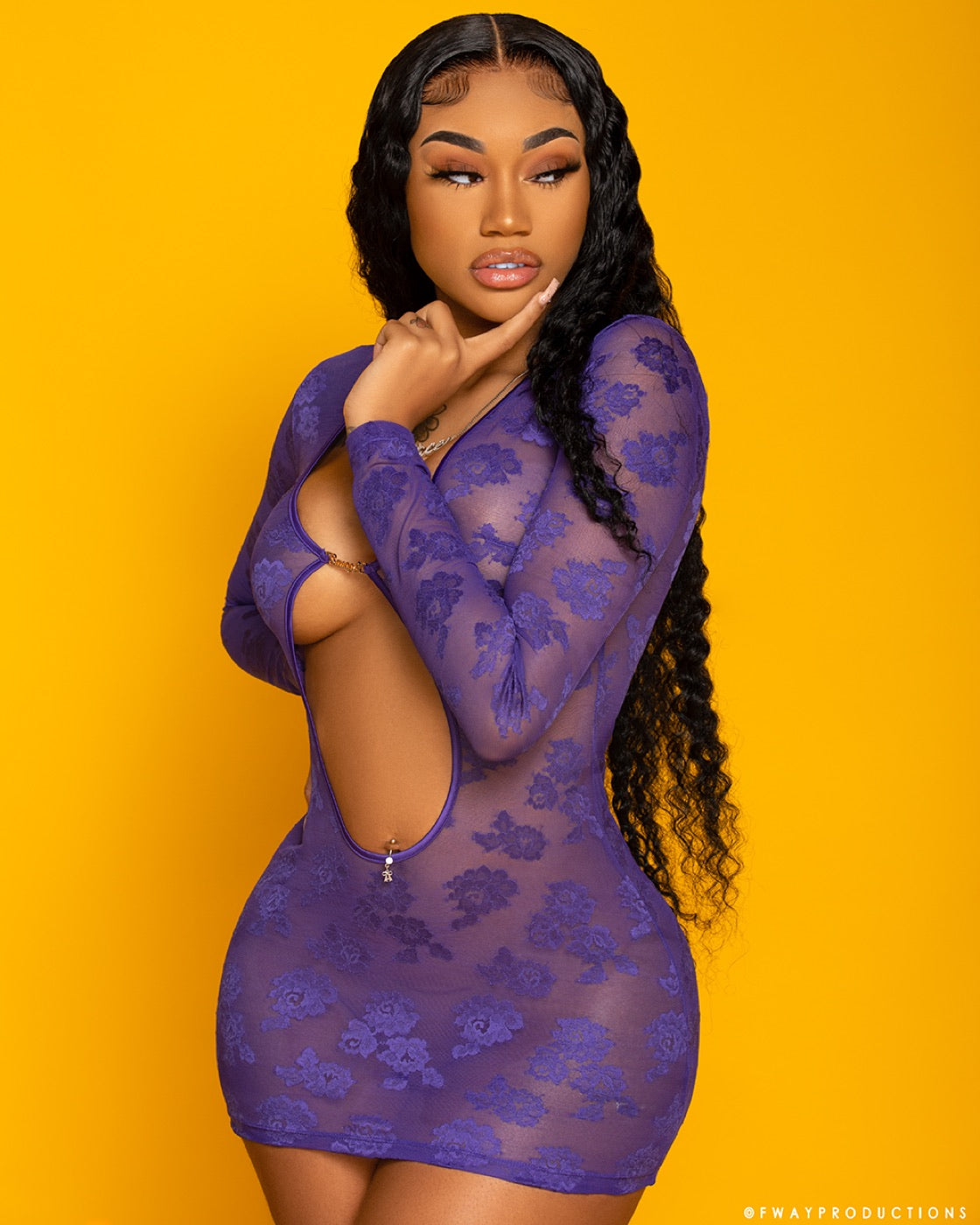
Saturated studio color that pops.

Clean, bright and airy for outdoor light.

Warm leather tones and moody shadows.
Not a one-click LUT. Each PowerGrade is the node tree we build on our own shoots, with each step on its own node so you can adjust exposure, balance and the look separately.
Get the files right after checkout.
On Resolve's Color page, right-click the Gallery and import the PowerGrade stills.
Pick your clip, right-click a look and choose Apply Grade.
Set your exposure and white balance on the first node. The look does the rest.
DaVinci Resolve. PowerGrades are Resolve grade files, so they won't open in Premiere or Final Cut.
Yes. Start by correcting exposure and white balance on the first node, then the look sits on top. Footage shot in log gives you the most room.
Soon. Join the waitlist and you'll hear first when they go live in the shop.
That's what Fway Academy is for. Grading is one of the topics we're planning.